Inserting bookmarks in your Word Report Template
You can merge an Excel chart, graph, or table into a Report Template.
This enables your report template to call on that bookmark every time you generate your report.
Formatting the Excel Chart or Graph
Step 1
In your Excel document, highlight all the cells that comprise your table.
(NB: This will be shown in your report template as per your Excel formatting, so make sure it looks great and fits your style.)
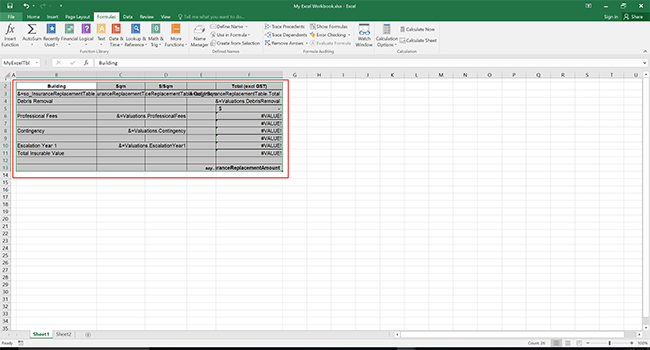
Highlighted cells
Step 2
Name your highlighted cells by typing a name in the box shown in red below.
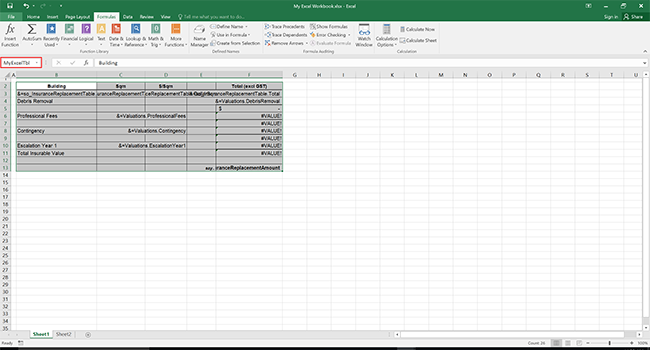
I named my highlighted cells, "MyExcelTbl"
Step 3
Hide the sheet by right clicking on the tab name, and select hide (as shown below).
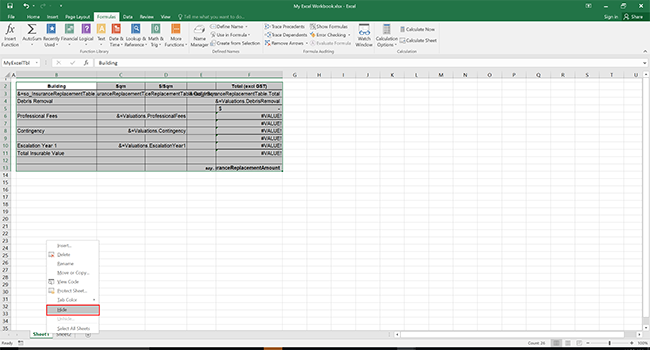
Hiding the sheet
Save this file and in ValuePRO SE - upload it as a report template in Excel format.
Inserting the Chart or Graph
Step 1
Insert a bookmark called “PreRender_Name” in any part of the word template. Note that “Name” can be any word of your choosing i.e. PreRender_Excel. This acts as a placeholder to allow you to link multiple excel template to the one Word report.
Step 2
After inserting the main bookmark “PreRender_Name”, you will now need to insert the name range bookmark called “PreRender_Name_NameRange” on the section of the word template where the excel report section is to be displayed. Note that the “NameRange” should be the same as the name range used on the excel template to encapsulate the section you wanted to show.For example “PreRender_Excel_Warehouse”.
Name Range on Excel template
Save all the changes on the word and excel templates then upload it back into the system.
Step 3
After uploading the templates, go to the “Report Templates” on the Report Template card. Under the “Report Dependencies” list, you will see the main bookmark/s inserted on the word template (PreRender_Name). On the second column of the list, you now need to select the excel template that you want to link to the word template. Finally, set the “Insert Type” to “Convert to Word” then press Save Changes.
Step 4
When the report is generate from the job card, the system will first generate the linked excel template and then generate the word report. The linked name ranges will then be inserted into the appropriate areas of the word report.
Excel Report:
Word Report:
Tip
Remember to upload your Excel document as a new Report Template. If you do not do this step, your bookmark will not work.
Video: